The task page
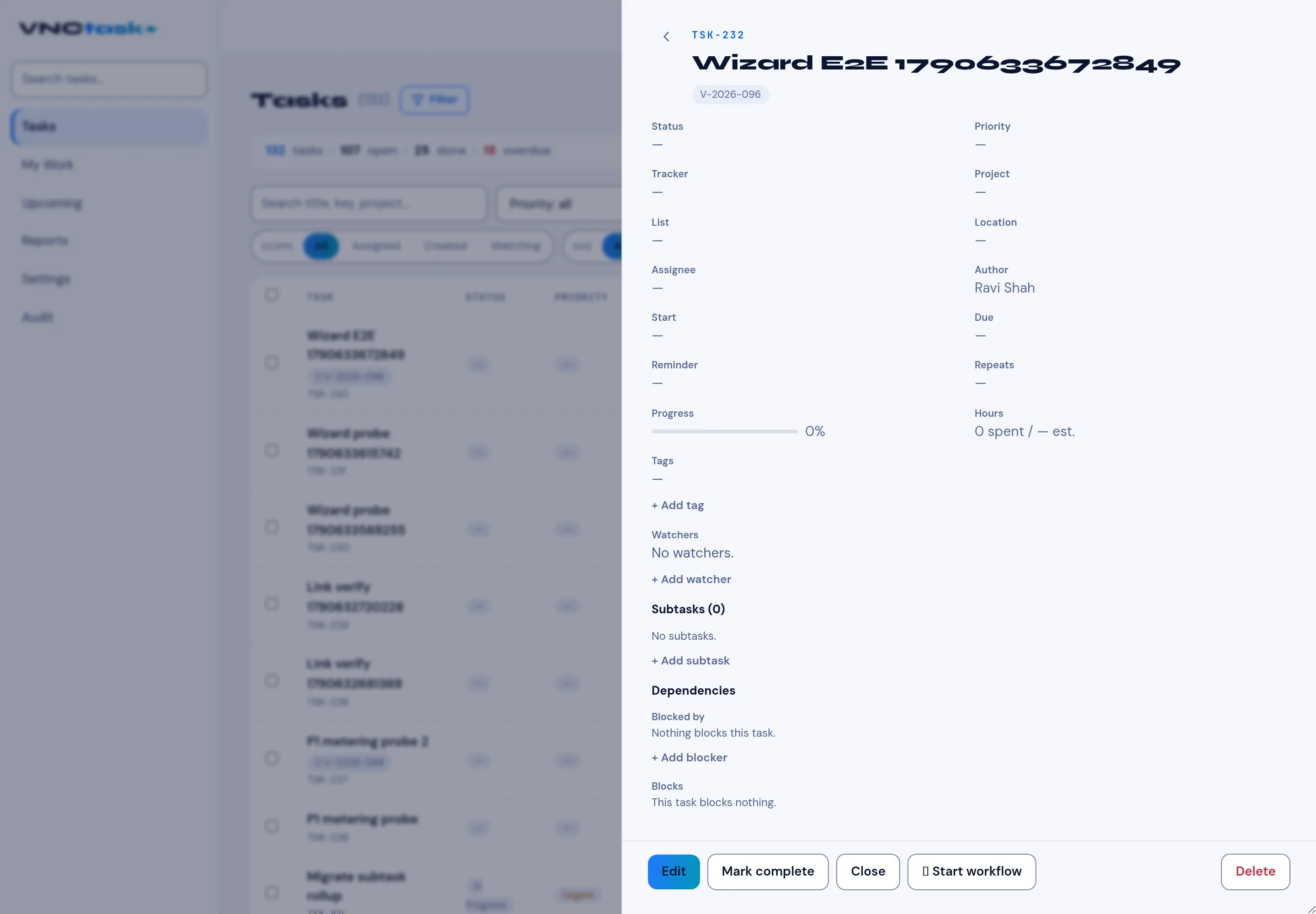
Select a task anywhere to open its page. The header shows the ID (TSK-…) and
the title.
Fields
Section titled “Fields”| Field | Meaning |
|---|---|
| Description | What the task is. |
| Status / Priority | Its state and urgency — see Statuses and priority. |
| Tracker / Project / List / Location | Where the task belongs. |
| Assignee / Author | Who owns it and who created it. |
| Start / Due | The window; an overdue Due shows in red. |
| Reminder / Repeats | Reminders and recurrence. |
| Progress | A percent slider. |
| Hours | Spent vs est. (estimated). |
Tags, watchers, subtasks, dependencies
Section titled “Tags, watchers, subtasks, dependencies”- Tags — add or remove labels with + Add tag.
- Watchers — people who follow the task, with + Add watcher.
- Subtasks — child tasks, with + Add subtask.
- Dependencies — Blocked by; Nothing blocks this task until you add a blocker with + Add blocker.
Workflow
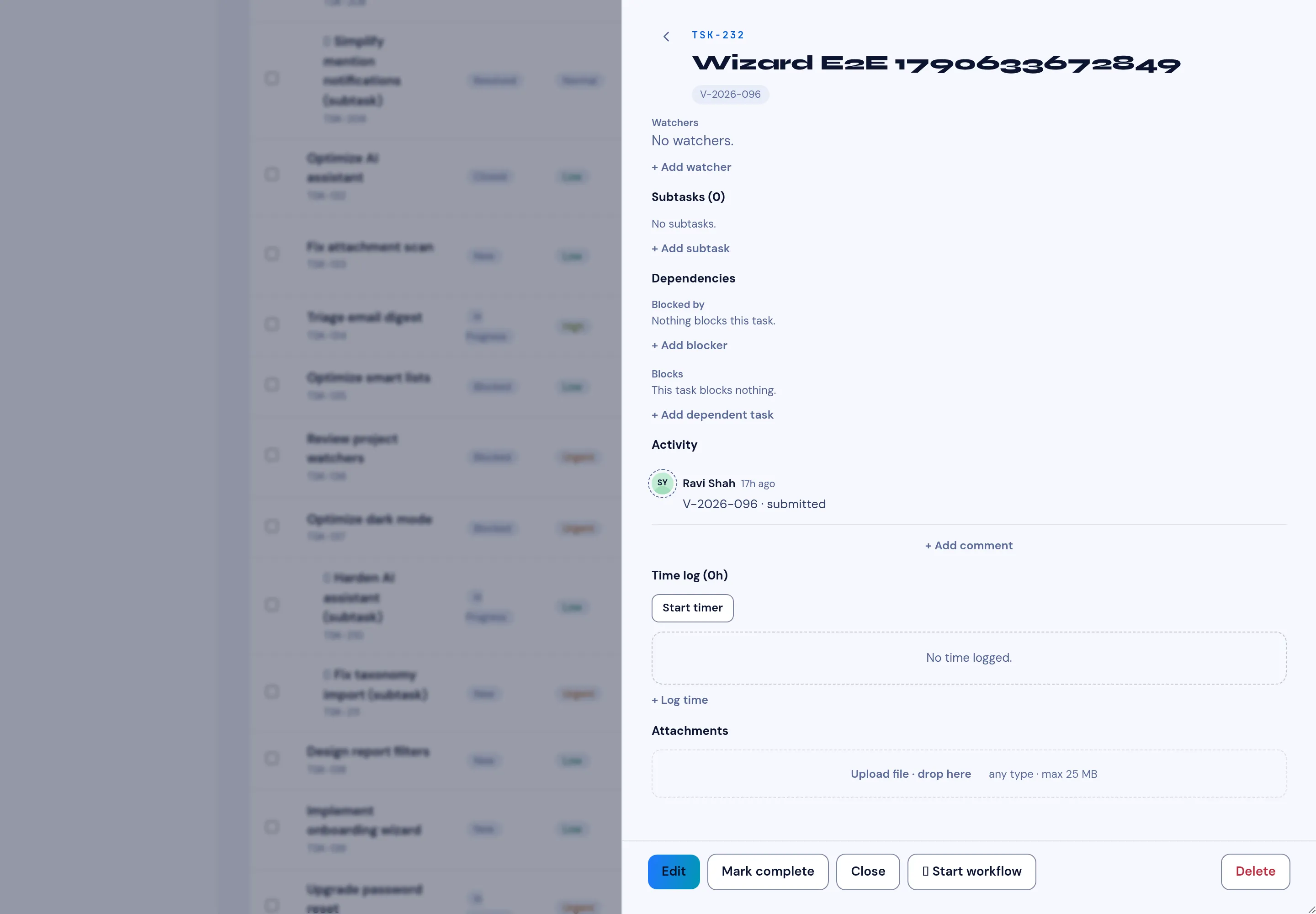
Section titled “Workflow”A task can be sent for approval. When it is, the request’s reference
(V-YYYY-NNN) shows as a chip under the title, and the task’s Activity
feed becomes a live timeline: it merges the task’s own events with the
VNCworkflow journey (submitted, forwarded, approved, rejected,
commented, assigned) as it unfolds. The task itself is never changed by the
request — the timeline is a read-only view of it.
- Start workflow (in the actions) opens the create wizard with this task as the source — see Start a workflow from any item.
- If the task already has an open workflow, VNCtask+ asks whether to open that one instead of starting a second.
Actions
Section titled “Actions”Edit, Mark complete, Close, Start workflow and Delete.