Your first 15 minutes in VNCchannels+
You will learn: how to find a channel, read a topic, comment on it, and publish your own topic. Time: about 15 minutes. Before you start: you are signed in to VNClagoon+ — see Sign in to VNClagoon+.
1. Open VNCchannels+
Section titled “1. Open VNCchannels+”- Open VNCchannels+ from your organization’s VNClagoon+ portal (select the channels+ tile).
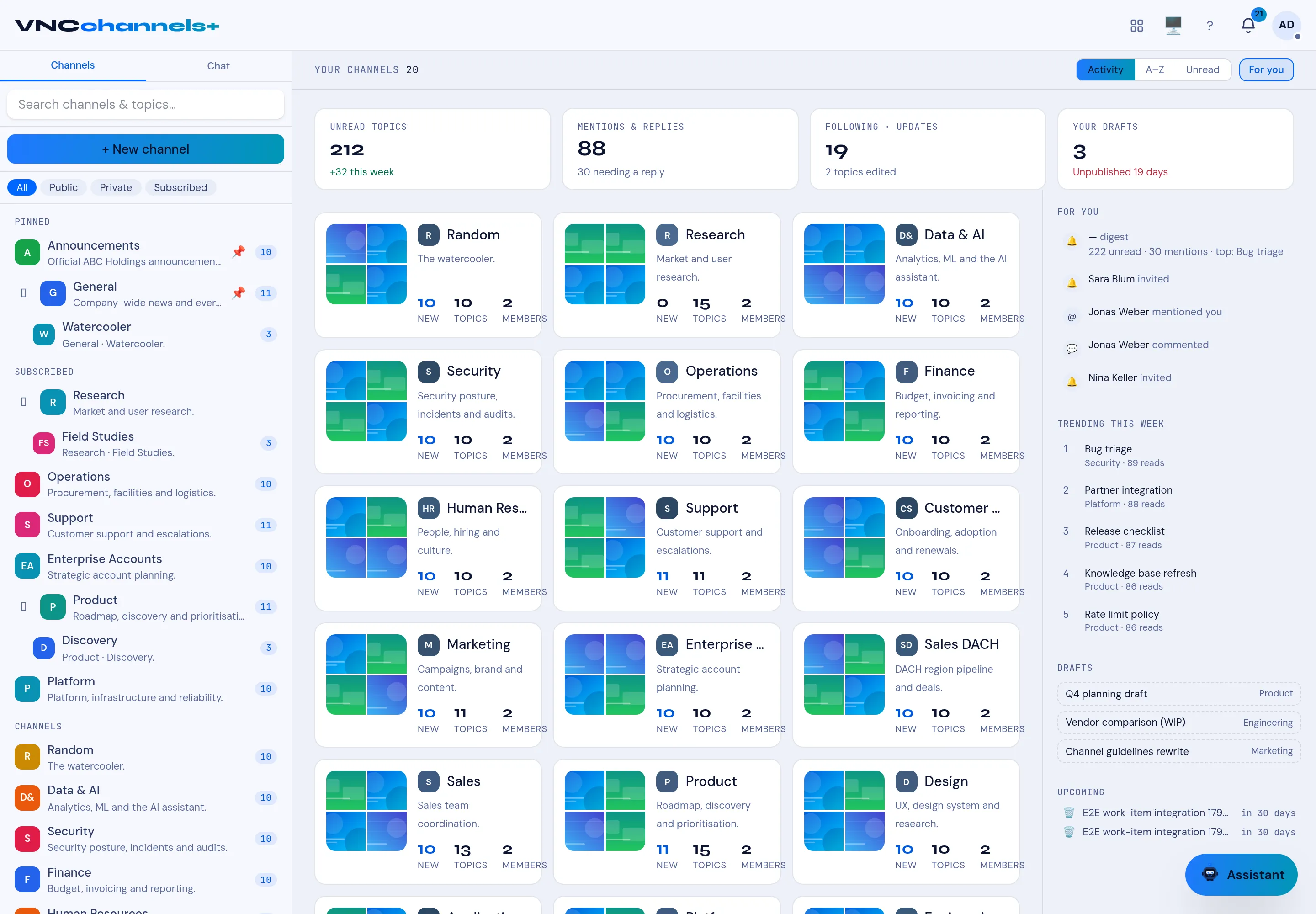
- The home page shows your channels as cards, with a KPI band above them (unread topics, mentions, following, drafts) and a For you rail on the right.
Checkpoint: You see the channel grid and the + New channel button.
2. Find and read a topic
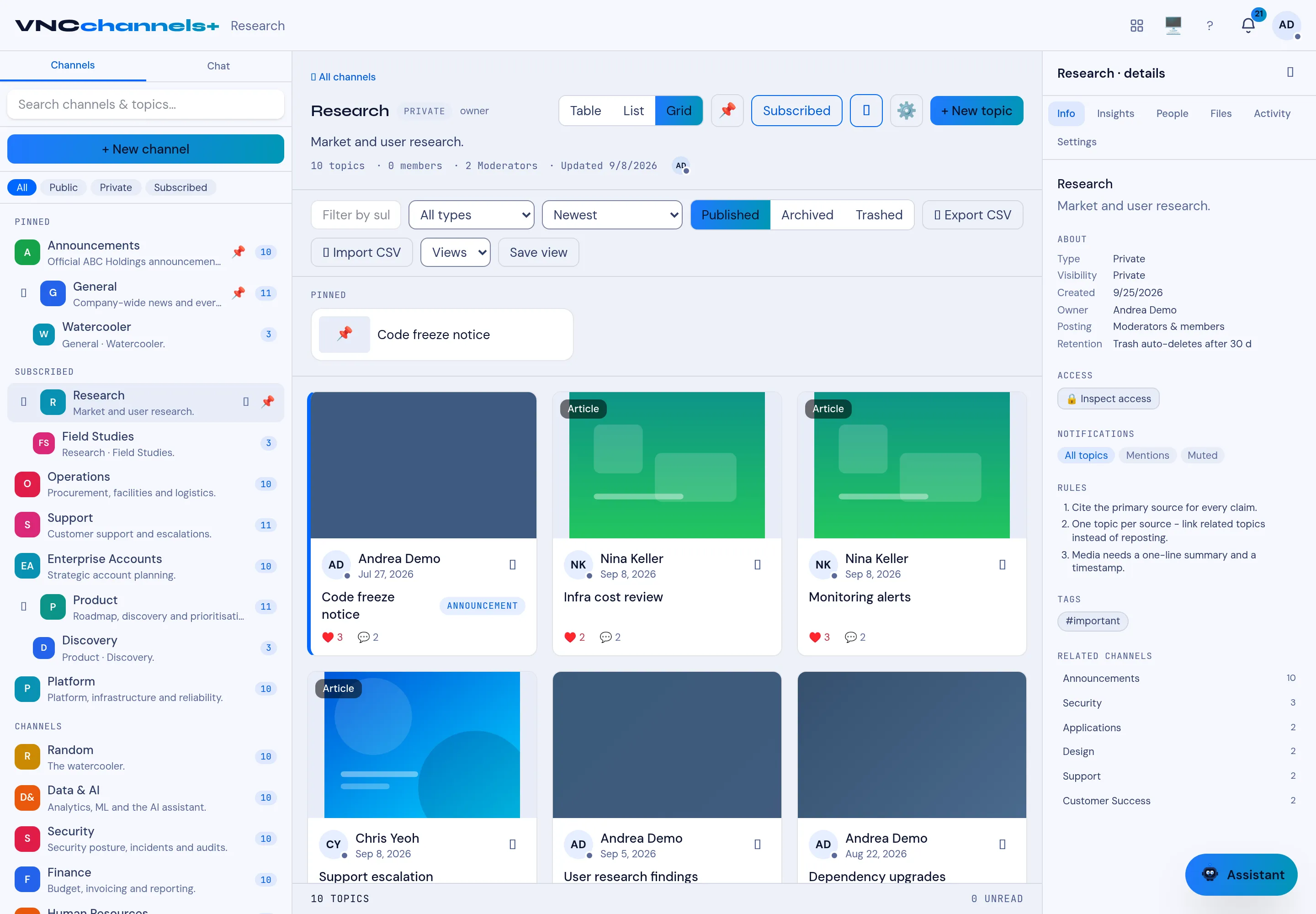
Section titled “2. Find and read a topic”- Open a channel from the grid — for example Research.
- Switch the view with Table, List or Grid, and sort with the Newest selector.
- Select a topic card, for example Code freeze notice, to read it.
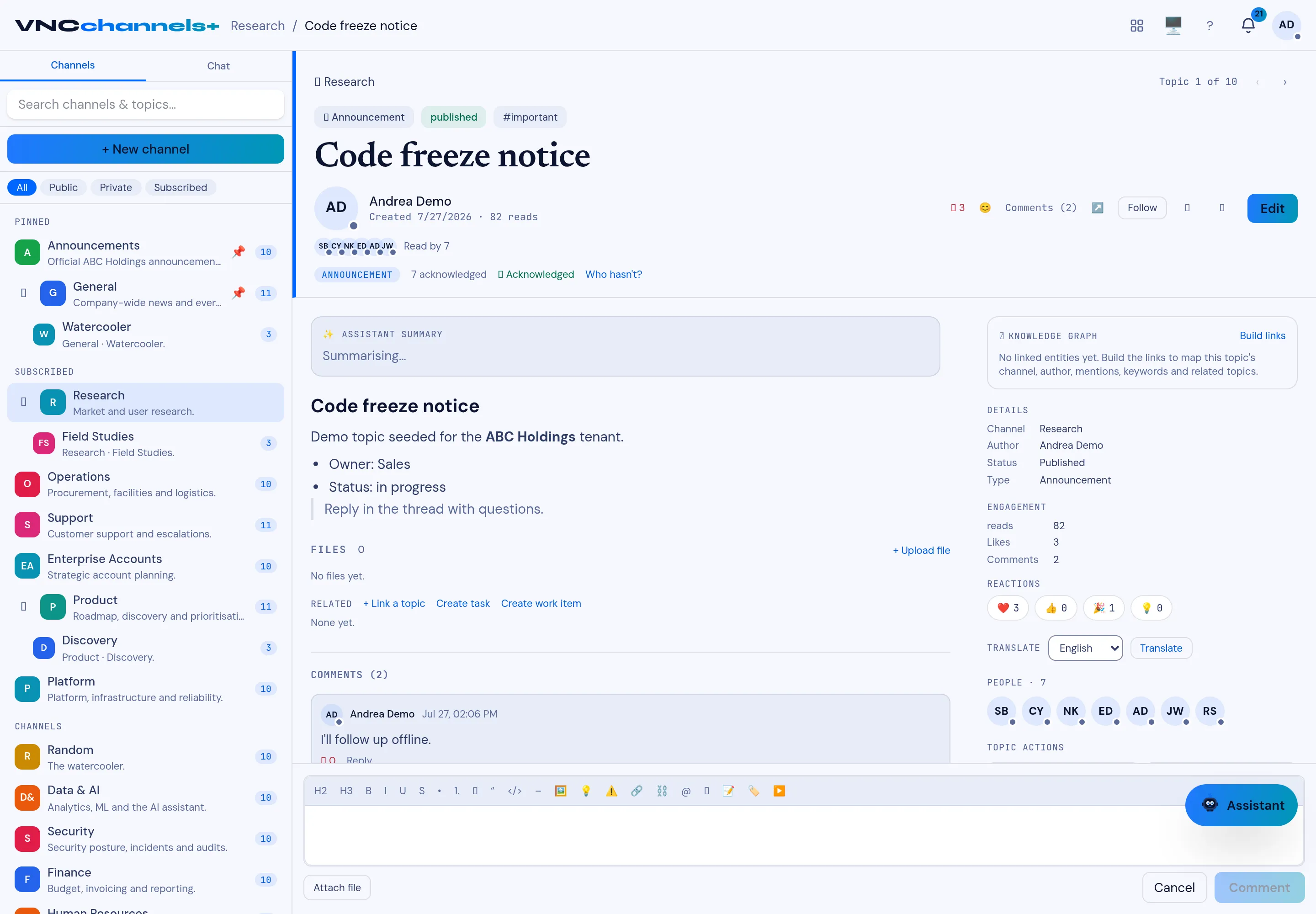
Checkpoint: The topic opens with its body, reactions, comments and a Details rail on the right.
3. Comment on a topic
Section titled “3. Comment on a topic”- Scroll to the Comments section at the bottom of the topic.
- Type your comment in the composer.
- Select Comment.
Checkpoint: Your comment appears under the topic and the comment count increases.
4. Publish your own topic
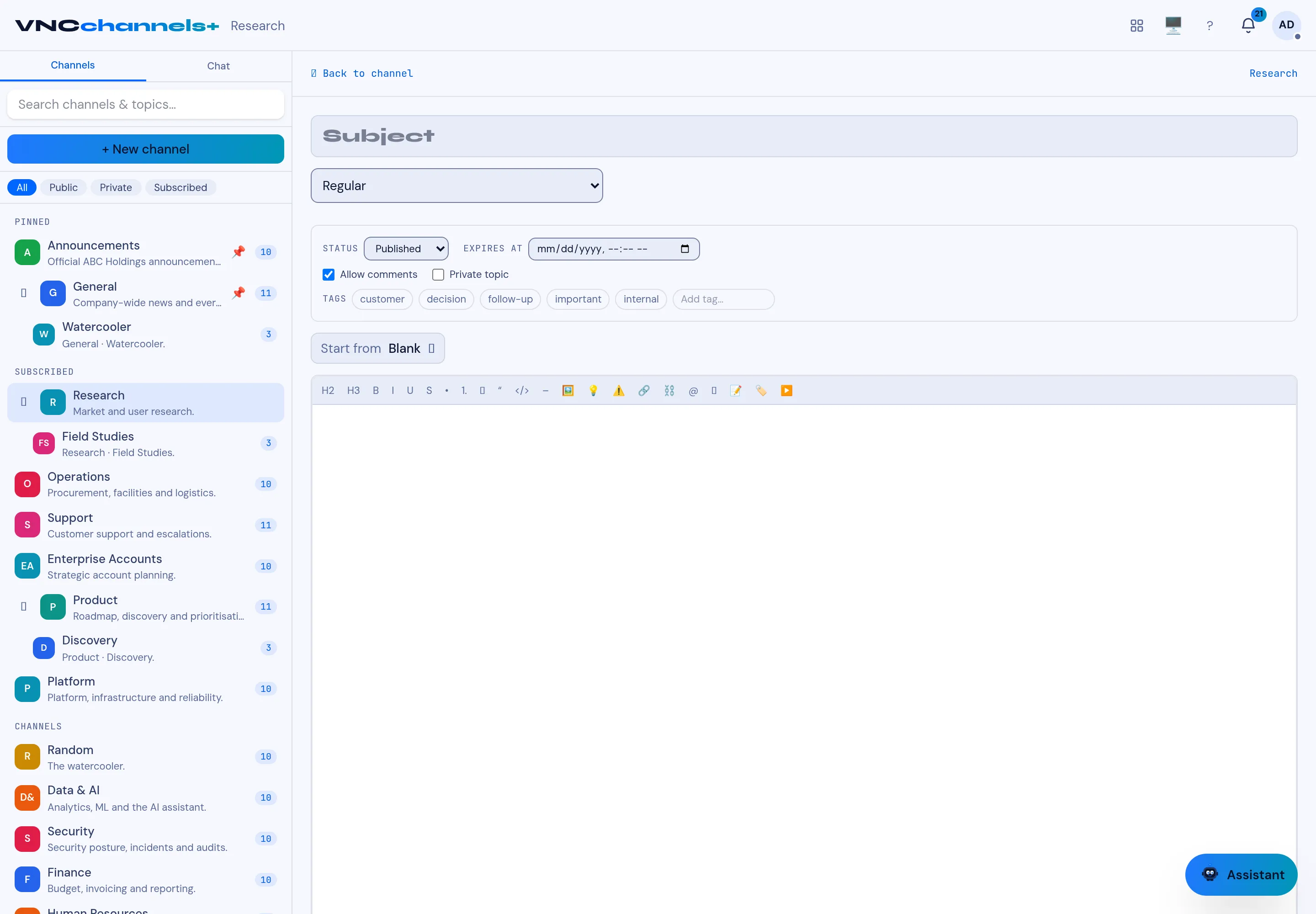
Section titled “4. Publish your own topic”- In the channel header, select + New topic.
- Enter a Subject.
- Choose the topic type (for example Announcement) and leave Status on Published.
- Optionally add Tags, then write the body.
- Select Post.
Checkpoint: The topic appears at the top of the channel’s topic list.
What you learned
Section titled “What you learned”- How to read the home KPI band and find a channel.
- How to open and read a topic, and switch list views.
- How to comment on a topic.
- How to publish a topic.