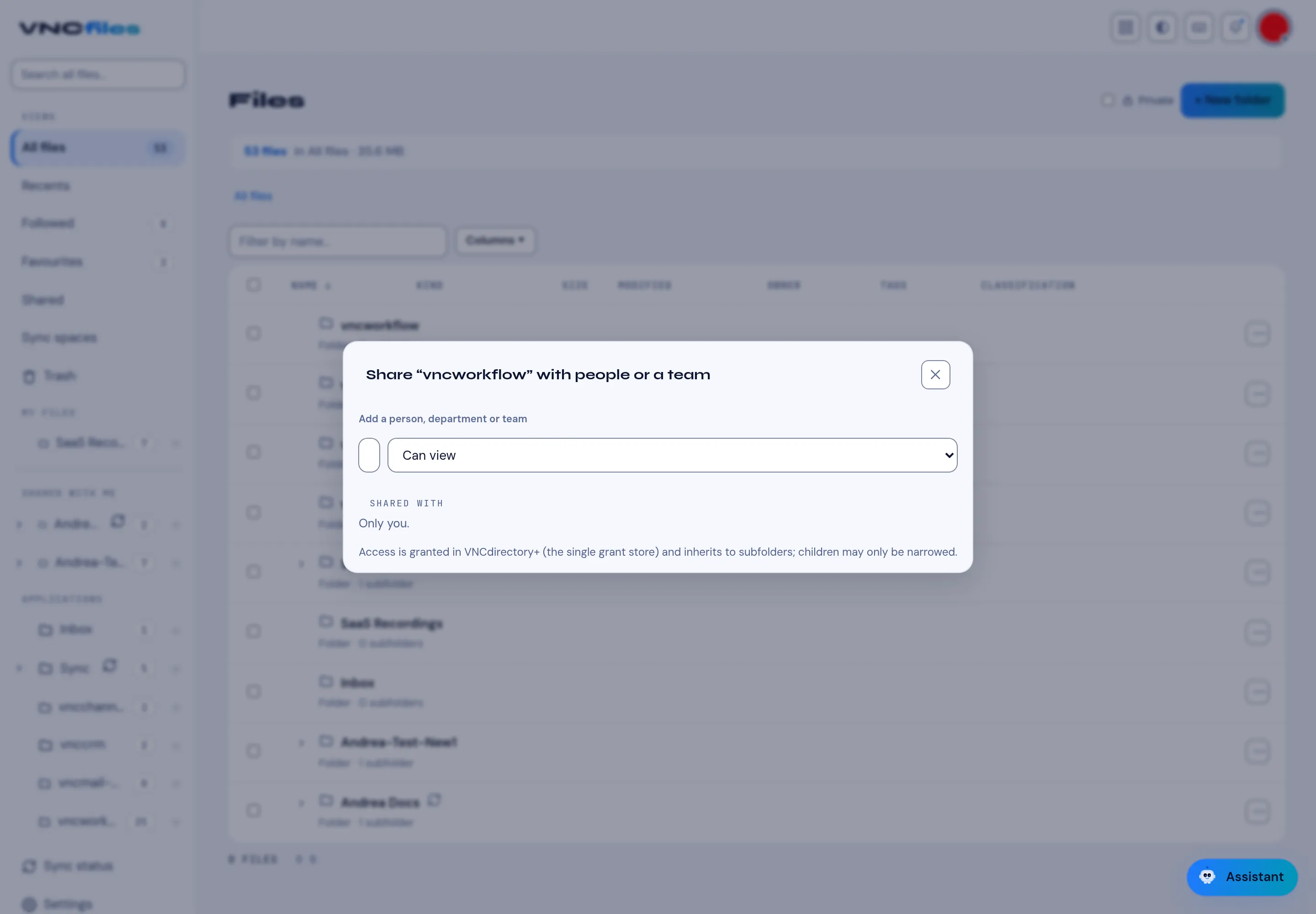
Share a file or folder
Share an item so a named person, a department or a team can see it. The access is recorded in VNCdirectory+, the single grant store.
-
Open VNCfiles and find the file or folder — in All files or a space.
-
Open the ⋯ menu at the end of the row and select Share with people….
-
In Add a person, department or team, search and choose who to share with. Set their right:
Right Lets them Can view Open and download the item. Can edit Change the item and its contents. Can share Pass access on to others. -
Shared with lists everyone you shared it with. While it is only you, it reads Only you. Select a row to remove that access. (Your own access as the owner isn’t listed — ownership isn’t a share.) Sharing the same person and right again shows Already shared with them and creates nothing; choosing a different right adds that right.
-
If the item sits inside a folder that was already shared with you, the dialog shows a Shared with you block (for example vncworkflow · Can view) — that is why you can open it.
-
Close the dialog. The item now appears under the Sharing view.
Result
Section titled “Result”The person — or everyone in the department or team — can open the item at the level you granted. A department or team grant is dynamic: people added to it (or to a sub-unit) inherit the access automatically. Any owner can share (not just administrators). When you shared an item, Shared with shows you who you shared it with (an administrator sees every grant). Access is granted in VNCdirectory+ and inherits to subfolders; children may only be narrowed, never widened — see Access grants.