Offline and sync
Offline & sync covers local copies and the desktop client.
Connect a client
Section titled “Connect a client”Under Offline & sync (or on first run) set the Server address and select Connect to your server. If it fails you get Could not reach the server — check the URL is openable in a browser.
Keep files offline
Section titled “Keep files offline”Select Keep offline on a file or folder to cache it locally (it shows Offline · cached). Search cached items with Search offline….
Sync spaces
Section titled “Sync spaces”A folder made a sync space (see File actions) appears under Offline & sync; Stop syncing this folder removes it. An admin flags sync spaces per folder.
Conflicts
Section titled “Conflicts”If a file changes in two places, VNCfiles asks how to resolve it:
- Keep the server version, or
- Re-apply ours, or
- Keep the original file, trash the conflict copy.
Sync console
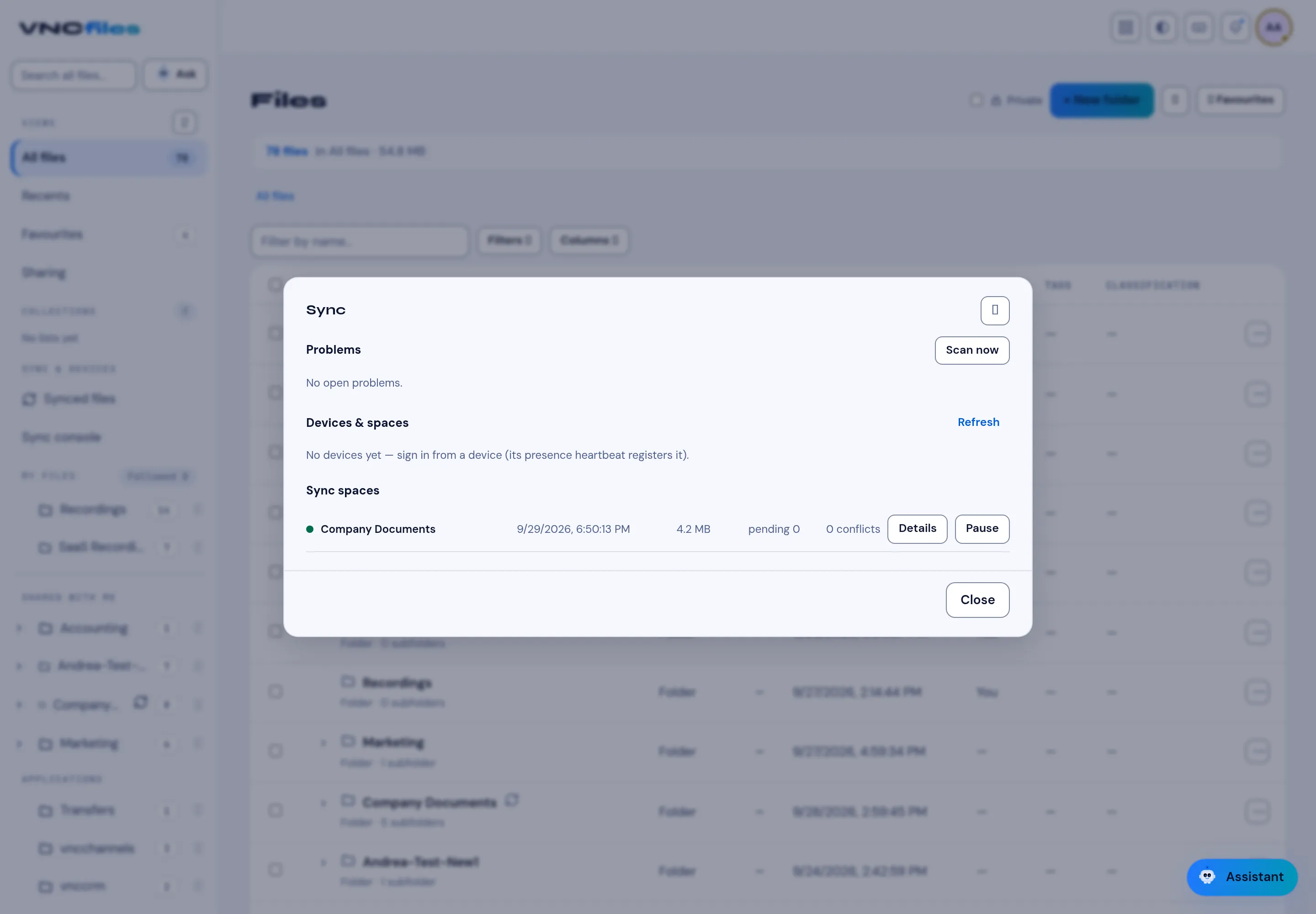
Section titled “Sync console”Sync console (under Sync & devices) is the live view of syncing:
- Problems — Scan now checks for stuck items; it reads No open problems when all is well.
- Devices & spaces — the devices signed in. A device appears once it signs in and sends its presence heartbeat; Refresh re-reads the list.
- Sync spaces — each space with its last sync, size, pending count and conflicts, with Details and Pause.
Per-device sync policy
Section titled “Per-device sync policy”For each device × space you can set a Sync policy:
- Sync over Wi-Fi only — don’t sync over mobile data.
- Upload limit and Download limit in kbps (blank = unlimited) — cap the bandwidth this device uses.
- Selective paths — sync only the named subfolders (one per line; blank = the whole space).
The server stores the policy for that grant and applies the caps to the device.