The knowledge graph and backlinks
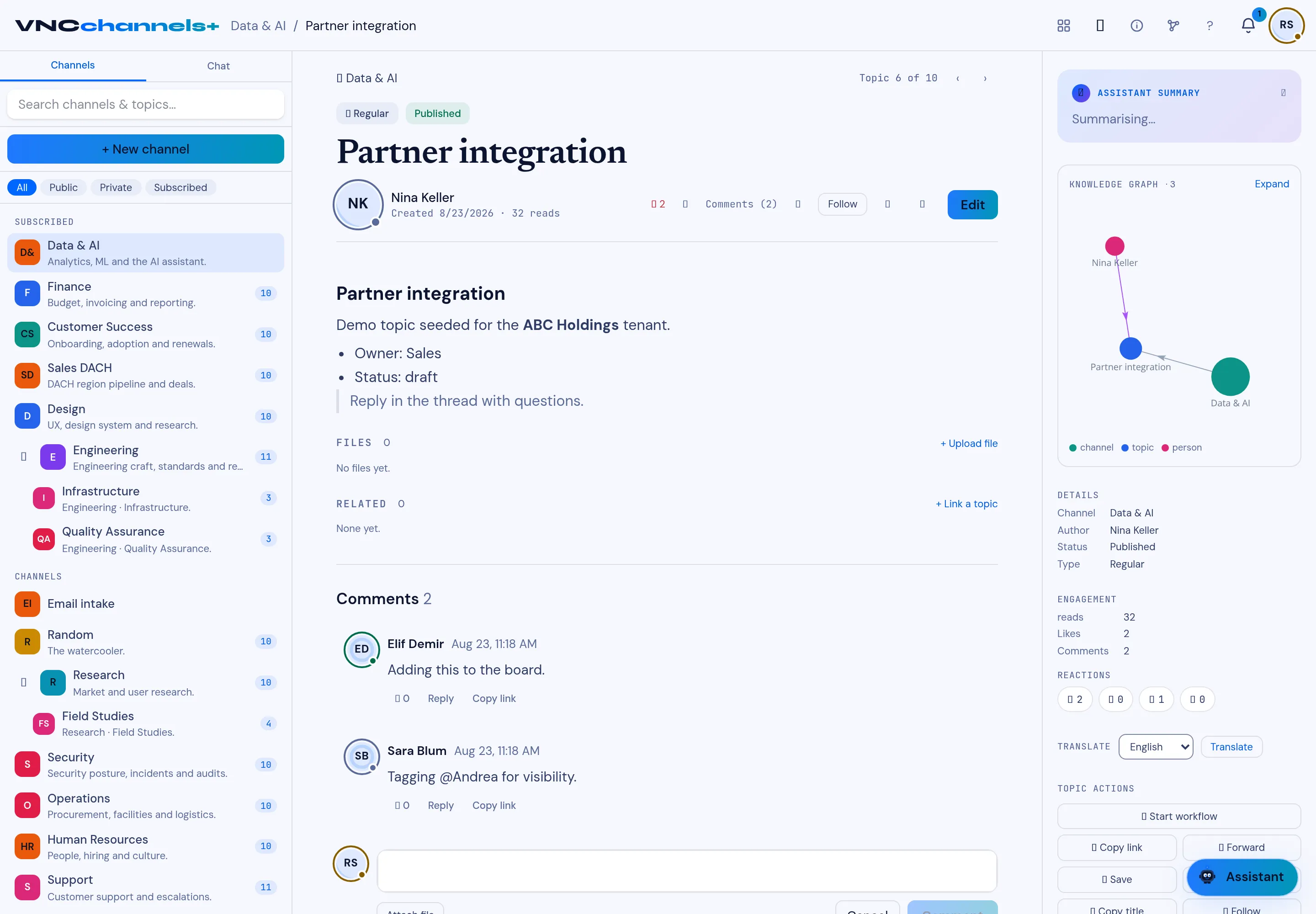
A topic does not stand alone. The Knowledge graph panel in a topic shows what it connects to, and Related lists the links an author has created.
Links out, links in
Section titled “Links out, links in”-
Related (in the topic body area) — topics the author linked explicitly with Link a topic.
-
Knowledge graph (the panel beside a topic) — the topic’s neighbourhood — its channel, author, tags, mentions and related topics — drawn as a live, interactive map. Click a node to open it; Expand opens it full-screen.
-
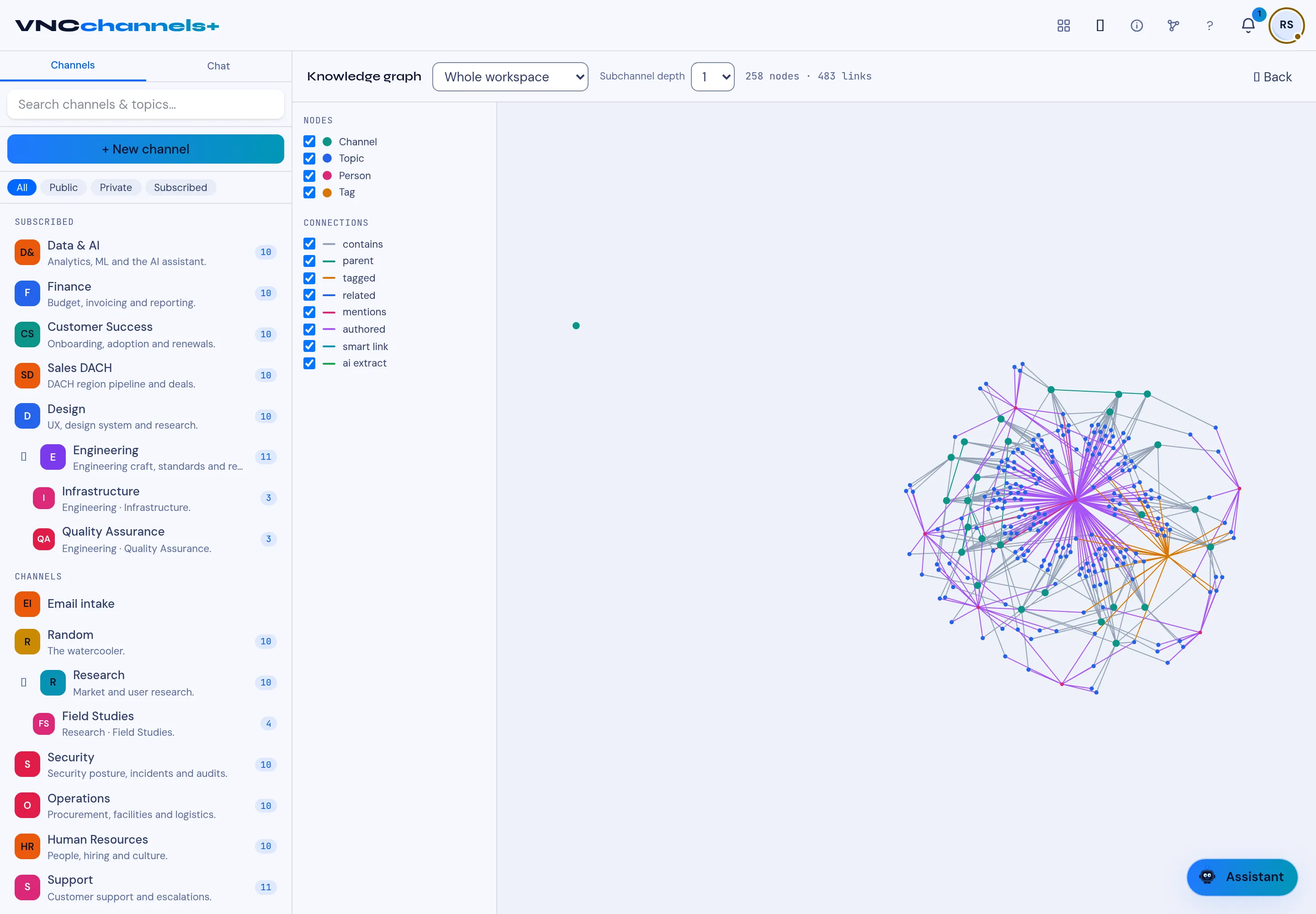
Graph view (the network button in the top bar) — the same connections for the whole workspace, or scoped to one channel, drawn as an interactive map. Pick a scope and a subchannel depth, filter by node type (channel, topic, person, tag) or connection type (contains, parent, tagged, related, mentions, authored, smart link, ai extract), and click any node to open it. The map is drawn live from the links that already exist — the ones an author made, plus the ones the platform records automatically from a topic’s content (its channel, author, people mentioned, keywords and tags), which appear as ai extract connections.
-
From a term — highlight a word or phrase in a topic — its body, title, channel or author — or click a #tag, and choose Graph to open the map focused on that term: every topic, person and tag connected to it.
Why it matters
Section titled “Why it matters”Backlinks answer “what else refers to this?” without a manual index. When someone links a decision to its specification, the specification can show the decision in return — so a reader lands on the whole context, not one fragment.