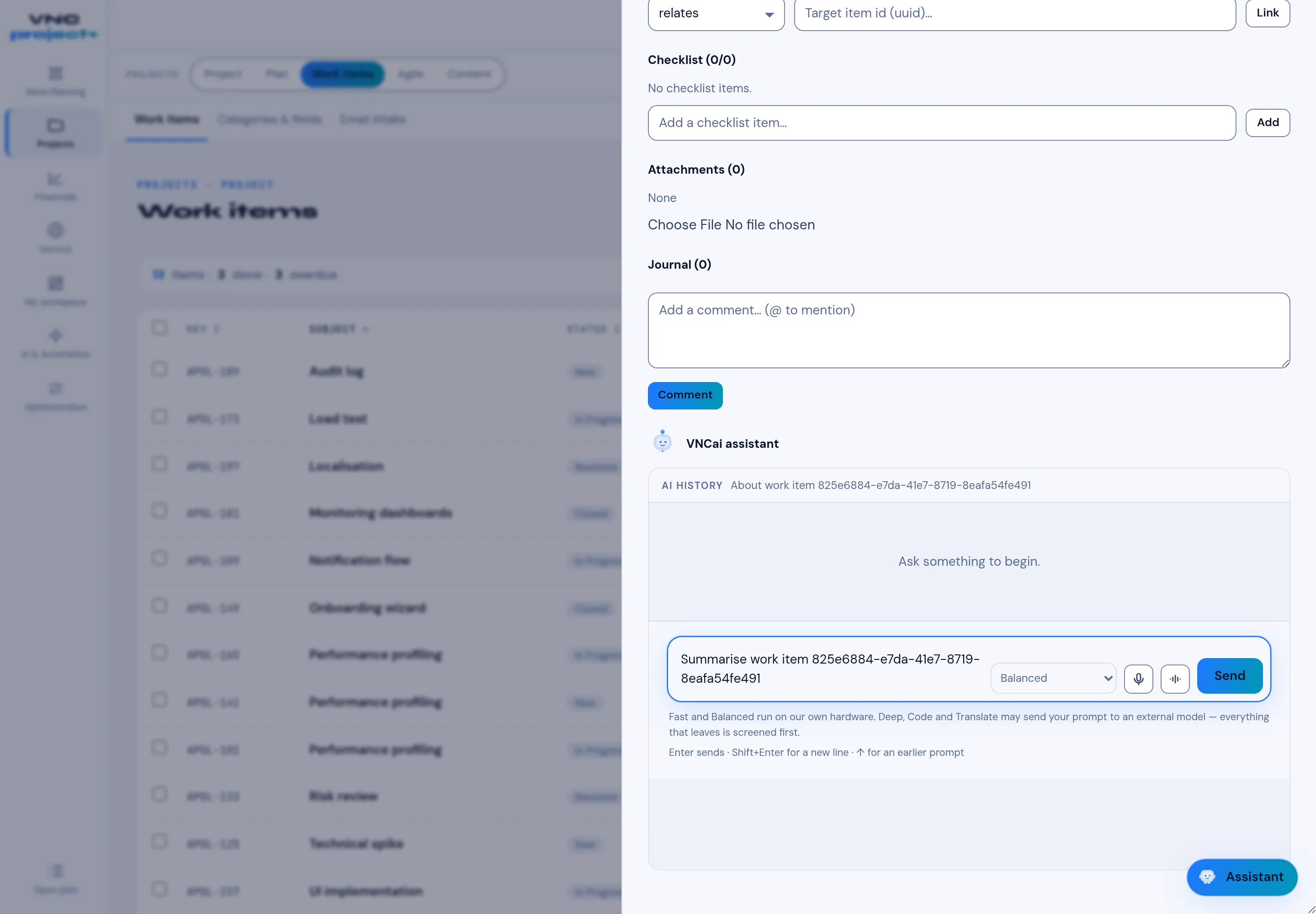
The work-item panel
Opening a work item shows its detail panel beside the list.
Sections
Section titled “Sections”| Section | What it does |
|---|---|
| Checklist | Sub-steps with a done / total counter; add one with Add a checklist item… → Add. |
| Attachments | Files on the item — Choose File, then upload. |
| Journal | The item’s history and comments; type in Add a comment… and use @ to mention a colleague — a mentioned person is notified and the mention is highlighted — then Comment. |
| VNCai assistant | Ask an AI about the item (below). |
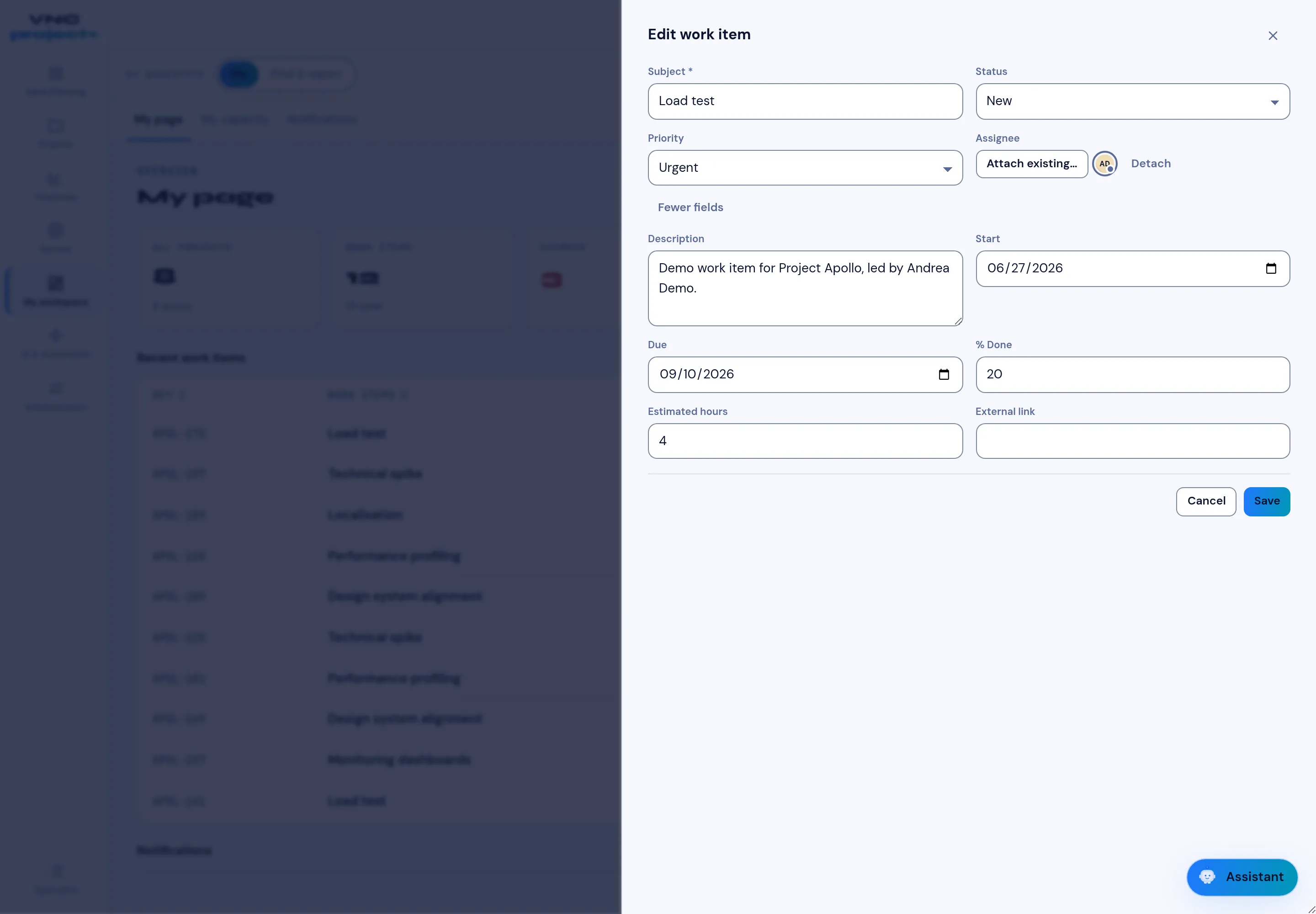
Editing the item
Section titled “Editing the item”Edit opens the work item’s form. The common fields sit at the top — Subject, Status, Priority and Assignee — and More fields reveals the rest: Description, Start, Due, % Done, Estimated hours and External link (a URL to a related resource outside VNCproject+). Save applies the change, and every change is recorded in the Journal.
The VNCai assistant
Section titled “The VNCai assistant”The panel shows AI HISTORY for the item and a prompt box. The engine selector chooses how the answer runs:
- Fast and Balanced run on our own hardware.
- Deep, Code and Translate may send the prompt to an external model — everything that leaves is screened first.
Press Send (or Enter; Shift+Enter for a new line, ↑ for the previous prompt). The mic and speaker buttons dictate and read the answer.