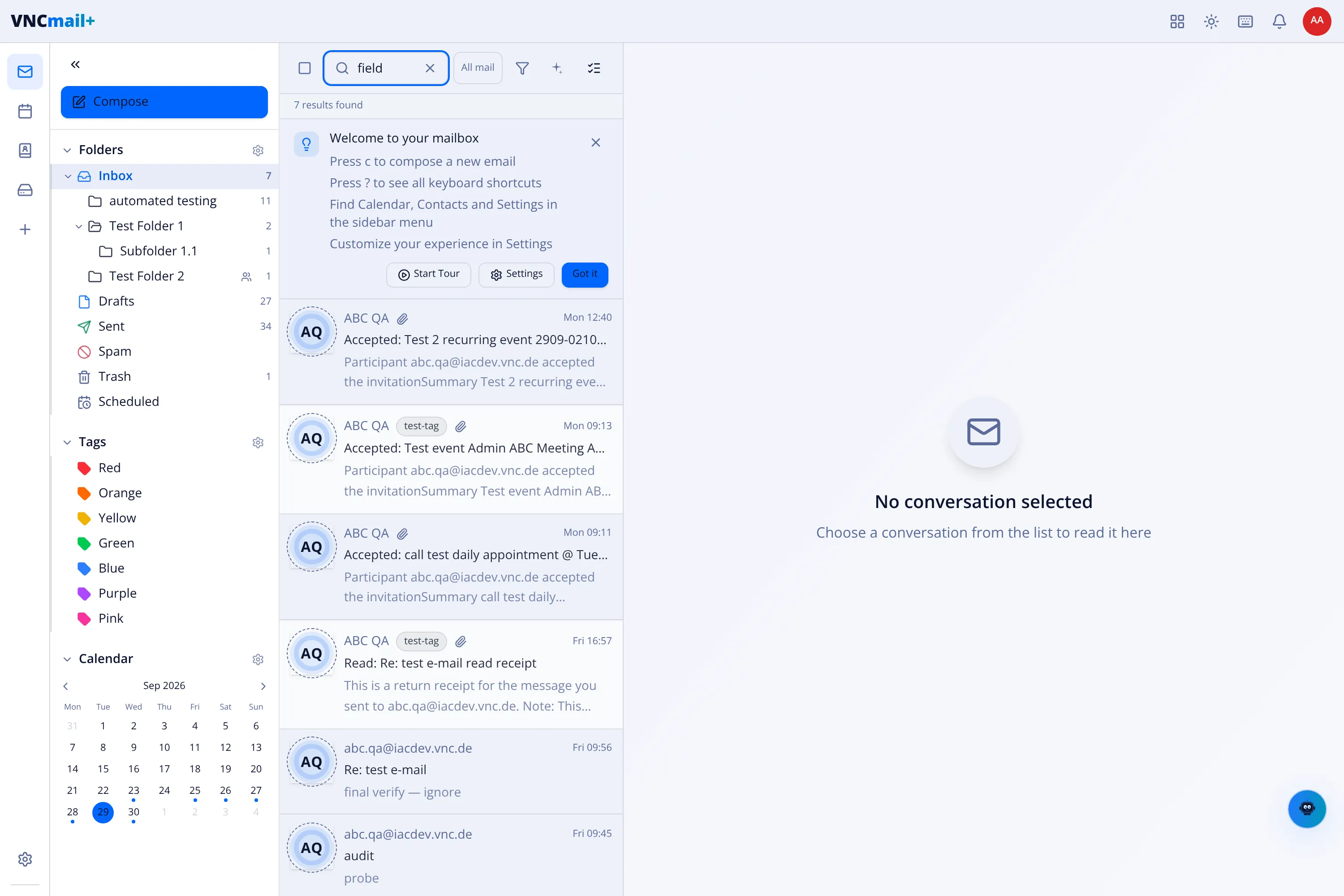
Search your mail
Search looks across your mailboxes and shows a running count as you type.
- Open Mail and select the search box at the top (or press /).
- Type your terms. You can also use operators such as
from:orhas:attachment; the box suggests them as you type. The result count appears above the list (for example 19 results found). - Open the filter control next to the search box to narrow the search — quick toggles plus an Advanced Search panel with From, To, Subject, Body, Tag, Status, Folder, Size and dates.
- Select a message to read it. Clear the search with the ×.
Search by meaning
Section titled “Search by meaning”The search box has two modes, switched beside it:
- Text — matches the words you type, with the operators below.
- Meaning — a semantic search: it finds messages by sense, not exact words (for example renewal risk), and is slower because it uses the mail index.
Result
Section titled “Result”Matching messages appear immediately, with the sender, subject and a preview line. If nothing matches, the list suggests adjusting your search or filters.