Configure notifications
Notifications tell you about new messages. You can enable them, choose what each room alerts you about, and turn the in-app sound on or off.
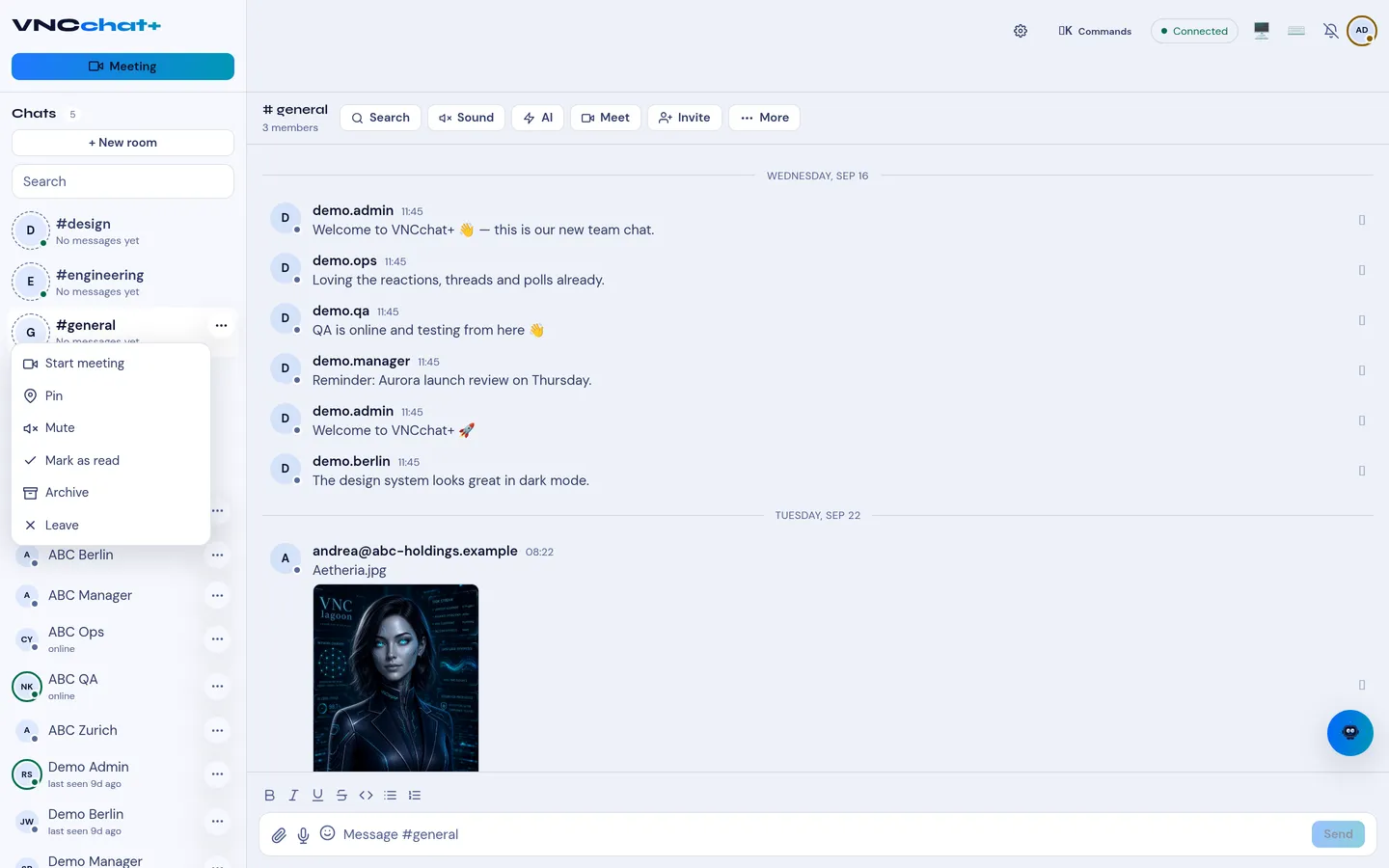
Enable notifications
Section titled “Enable notifications”- In the host utility rail, select Notifications.
- Select Enable and allow notifications in your browser when asked.
Choose what a room alerts you about
Section titled “Choose what a room alerts you about”- Open a room or conversation.
- In the room header, open the more options menu (⋯).
- Under Notifications, pick a level:
- All messages — alert for every new message (the default).
- Mentions only — alert only when someone @-mentions you.
- Nothing — never alert (the unread badge still appears).
The Sound toggle in the same menu turns the alert sound on or off, and the incoming-call ring can be muted separately.
Result
Section titled “Result”Your choices are stored in this browser, per room. A room set to Nothing still shows its unread badge, but it does not alert you.